
Product / Ecommerce
Product orbit loop
Animate a clean product still with a slow orbit, parallax background, and premium studio light.
Generated video will be displayed here
Upload a reference image, describe the camera motion, and turn product photos, portraits, landscapes, or ad stills into AI video clips.
Animate a clean product still with a slow orbit, parallax background, and premium studio light.
Turn a creator portrait into a natural opening shot for Reels, Shorts, and paid social.
Add highlight sweeps and camera movement to a static ad still before creative testing.
Use a travel photo or background still as the source for a calm rising camera shot.
Workflow
Use a clean product shot, packshot, or brand visual as the motion source.
Specify camera path, pacing, lighting mood, and clip length.
Render with Kling and compare variants until the movement feels natural.
Download the loop for ads, PDP hero sections, and social placements.
Start from a product photo, portrait, landscape, pet photo, or campaign still instead of generating a scene from scratch.
Describe push-ins, orbits, dolly moves, reveals, highlight sweeps, depth changes, and pacing in plain language.
When the product, person, animal, or composition needs to remain recognizable, image-to-video gives the model a stronger visual anchor.
Generate multiple motion directions from the same still and compare which one works best for ads, PDP heroes, Shorts, Reels, or launch pages.
| KlingCommon pick | Seedance | Veo | |
|---|---|---|---|
| Best for | Product stills, portraits, and reference-driven motion clips | Marketing videos, social content, and image-to-video creative tests | Cinematic landscapes, complex scenes, and brand atmosphere clips |
| Prompting style | Clear subject preservation plus short camera motion commands | Balanced scene, motion, light, and channel direction | Cinematic language with mood, lens, and environmental detail |
| Workflow fit | Fast drafts from one uploaded image | Campaign and social variants across many stills | Fewer high-direction concept explorations |
Pick a clean product, portrait, landscape, pet, or campaign image with a clear subject.
Define camera path, pacing, light movement, aspect ratio, and the final channel.
Try the available image-to-video model options and compare subject stability and motion quality.
Use the final loop for ads, social posts, product pages, landing heroes, and creative reviews.
“We animate the same product still for every seasonal drop instead of booking motion shoots.”
“Image-to-video is the fastest way to turn our catalog photos into paid-social loops.”
“The orbit-and-push prompts make our skincare bottles feel premium without a studio crew.”
FAQ
Clean product shots with clear subjects and minimal clutter animate best. Start from AI Product Photo if you need a catalog-ready still first.
Clip length depends on the active model and plan limits. Most marketing clips land between 3 and 6 seconds.
Yes. Many teams generate a hero still with AI Product Photo, animate it here, or switch to Text to Video for fully prompt-driven motion.
Turn product photos into short ecommerce video clips for PDP heroes, marketplace ads, and launch teasers — without booking a motion shoot.
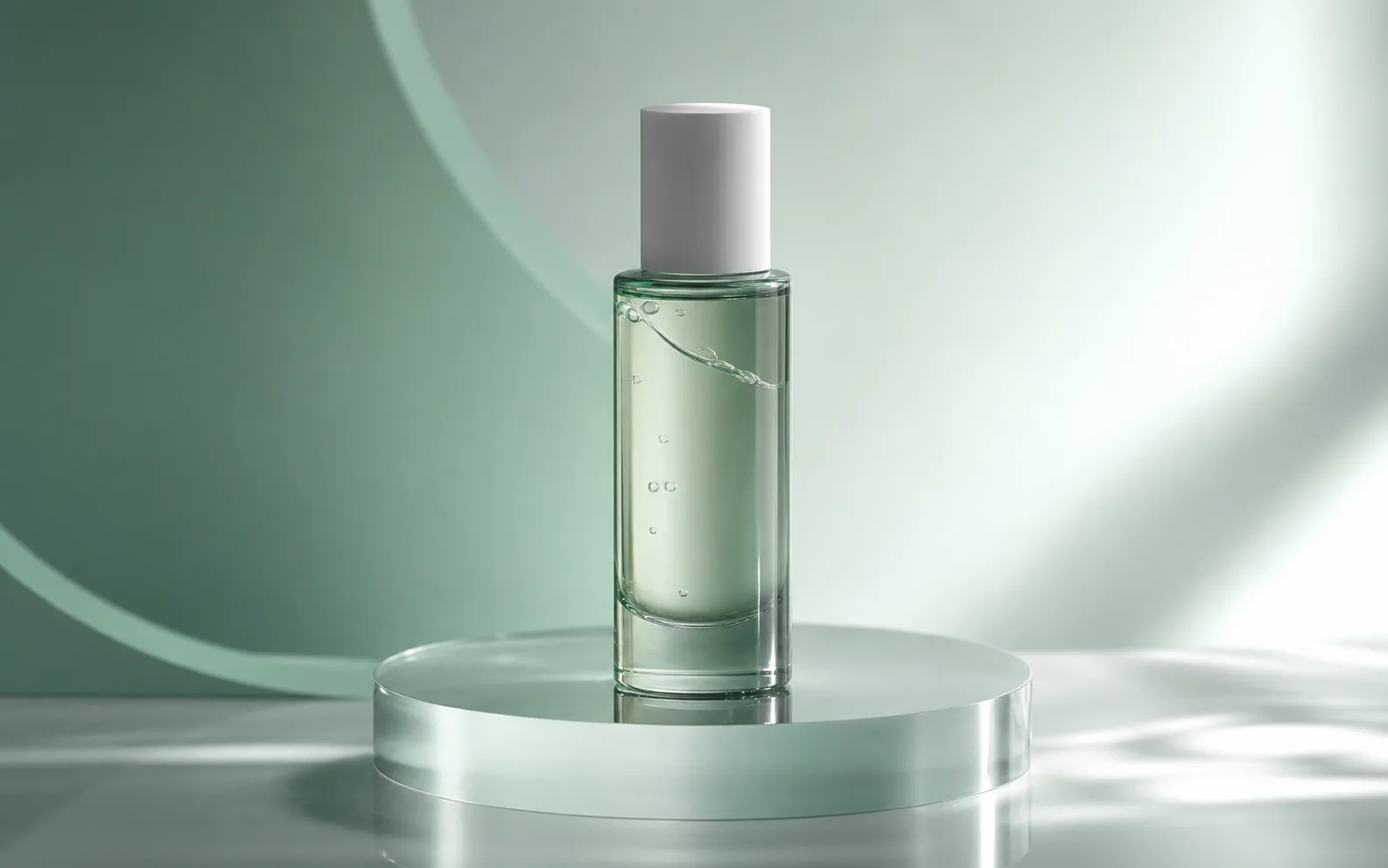
Turn prompts into short videos for ads, social posts, and product campaigns with Seedance 2.0.
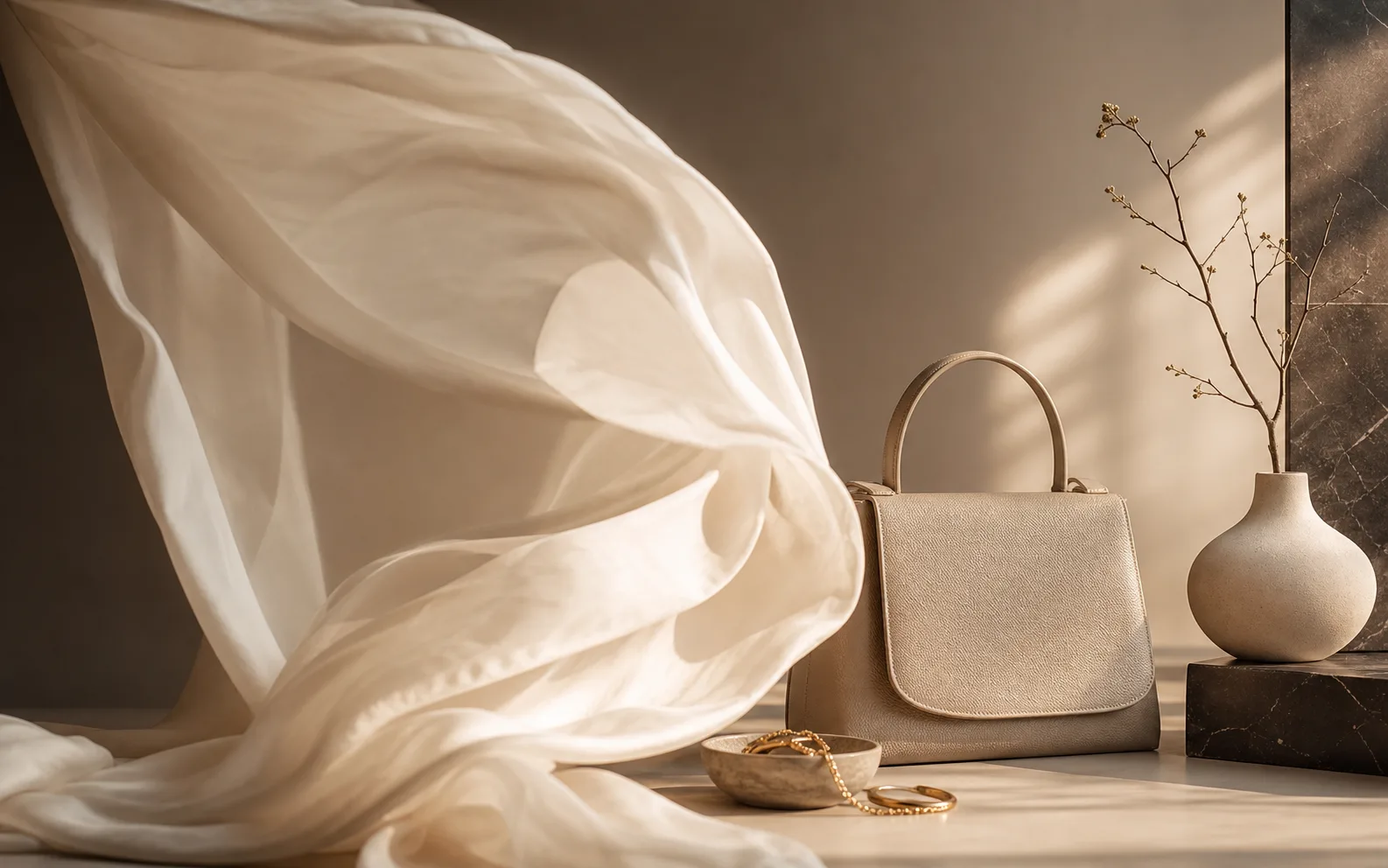
Create cinematic AI videos from text, images, audio, and video references. Use Seedance 2.0 to generate smooth motion, realistic scenes, synchronized audio, and multi-shot storytelling in minutes.
Upload a still, describe the motion, and export a campaign-ready clip in minutes.